
Xbox controller Code 10 on Windows
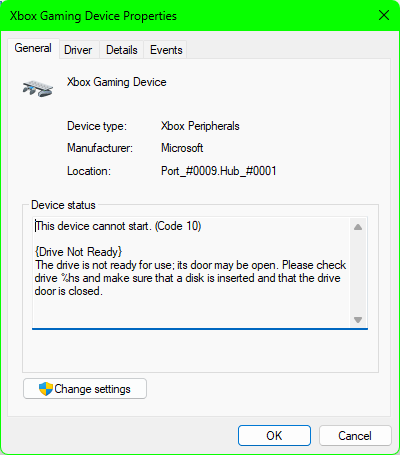
Windows shows “This device cannot start. (Code 10)” when a device fails to start. First check whether the warning is on your physical controller or on the XBOX Synthetic Gamepad Bus. Each has a different next step.
Last reviewed
Find the device with the warning
- 1.Close Fortnite and NeyraX. Connect one controller directly to your PC using a USB data cable.
- 2.Right-click Start and open Device Manager. Find the entry with the yellow warning icon, then double-click it. The name at the top tells you which device is affected.
- 3.On General, read Device status. If it says Code 10, open Driver and write down the Driver Version. If NeyraX paused setup before an error appeared, check that version on XBOX Synthetic Gamepad Bus.
If the warning is on your physical controller
Try another USB data cable or a different USB port. If this controller is also connected by Bluetooth, disconnect its Bluetooth connection for this check and leave the cable plugged in.
- 1.Press Windows key + R, type joy.cpl and press Enter. Select the controller, open Properties and press a button.
- 2.If Windows shows the button press, the wired controller responds. Check the bus separately if it also has a warning.
- 3.If the physical controller still shows Code 10, follow the driver guidance from Windows or the controller manufacturer. Get the wired controller working in Windows before starting NeyraX.
If the warning is on XBOX Synthetic Gamepad Bus
This entry is a Windows component. Your wired controller can still respond in joy.cpl while the bus shows a warning.
A conflict with HidHide was reported on Xbox bus driver 18.14.58.767. On a first setup with that version, NeyraX pauses before installing HidHide. If HidHide is already installed, NeyraX checks the wired controller separately.
If you see the pause, leave the drivers in place. In NeyraX, choose Create support report and share the report in a private support ticket. You can do this before activating a key. If the version differs, include the exact number so support can check your case.
Read the Xbox bus driver report in the HidHide projectStill seeing Code 10?
Take your report to a private support ticket so we can check the device and driver with you. You can ask before buying or activating.
Get help with my controller